🎮 2-Button Switch Kit
The NARBE Foundation Switch Kit is a simple, low-cost 2-button accessibility kit designed for recreational use. Based on Ben's abilities to click both buttons, this kit lets users play games and interact with Benny's Hub and other accessible software.
Get Your Free Switch Kit
We donate these kits to individuals and families who can benefit from accessible gaming and interaction tools. Kits are distributed quarterly, based on availability, on a first-come, first-served basis. United States only.
📖 Setup Guide
Already have your kit? Follow the guide below to get started!
What's In Your Kit
Your 2-Switch Kit includes everything you need to start accessible gaming right away.
2 Accessibility Switches
Large, easy-to-press switches with 3.5mm TS (Tip-Sleeve) mono audio connectors — the same type of plug used for standard mono audio cables.
USB Adapter
A USB Type-A interface adapter that converts your switch inputs into keyboard signals your computer can understand.
3.5mm Splitter Cable
A Y-splitter that connects both switches to the USB adapter. Each port on the splitter maps to a specific keyboard input.
Adhesive Velcro Strips
Hook and loop velcro strips with strong adhesive backing for mounting your switches wherever works best for you.
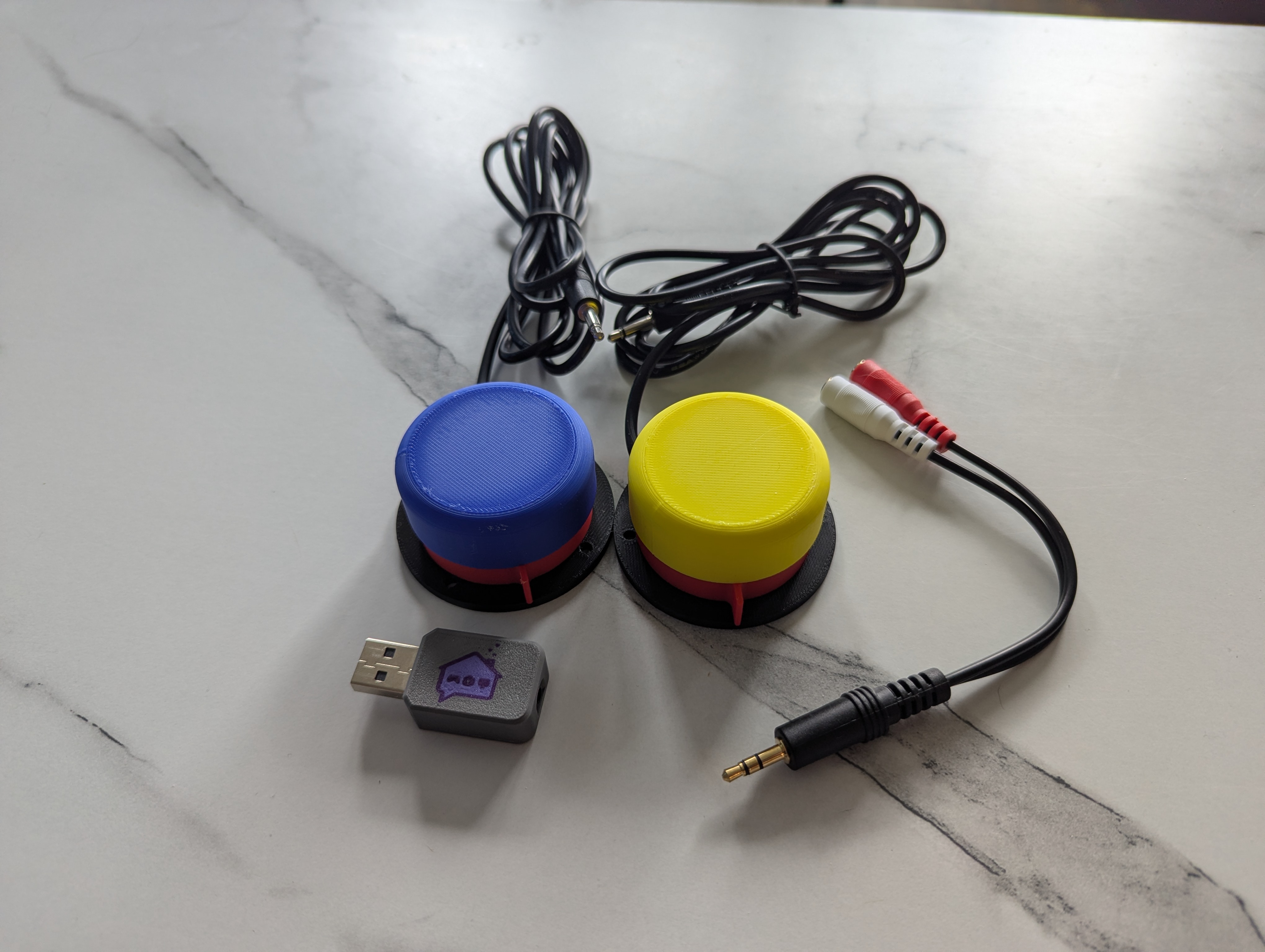
Your Complete Kit
Everything laid out and ready for setup. The switches connect via the splitter to the USB adapter, which plugs into your device.
Getting Started
Follow these simple steps to set up your switch kit and start playing!
🚨 Important: Remove the Switch Keyguard!
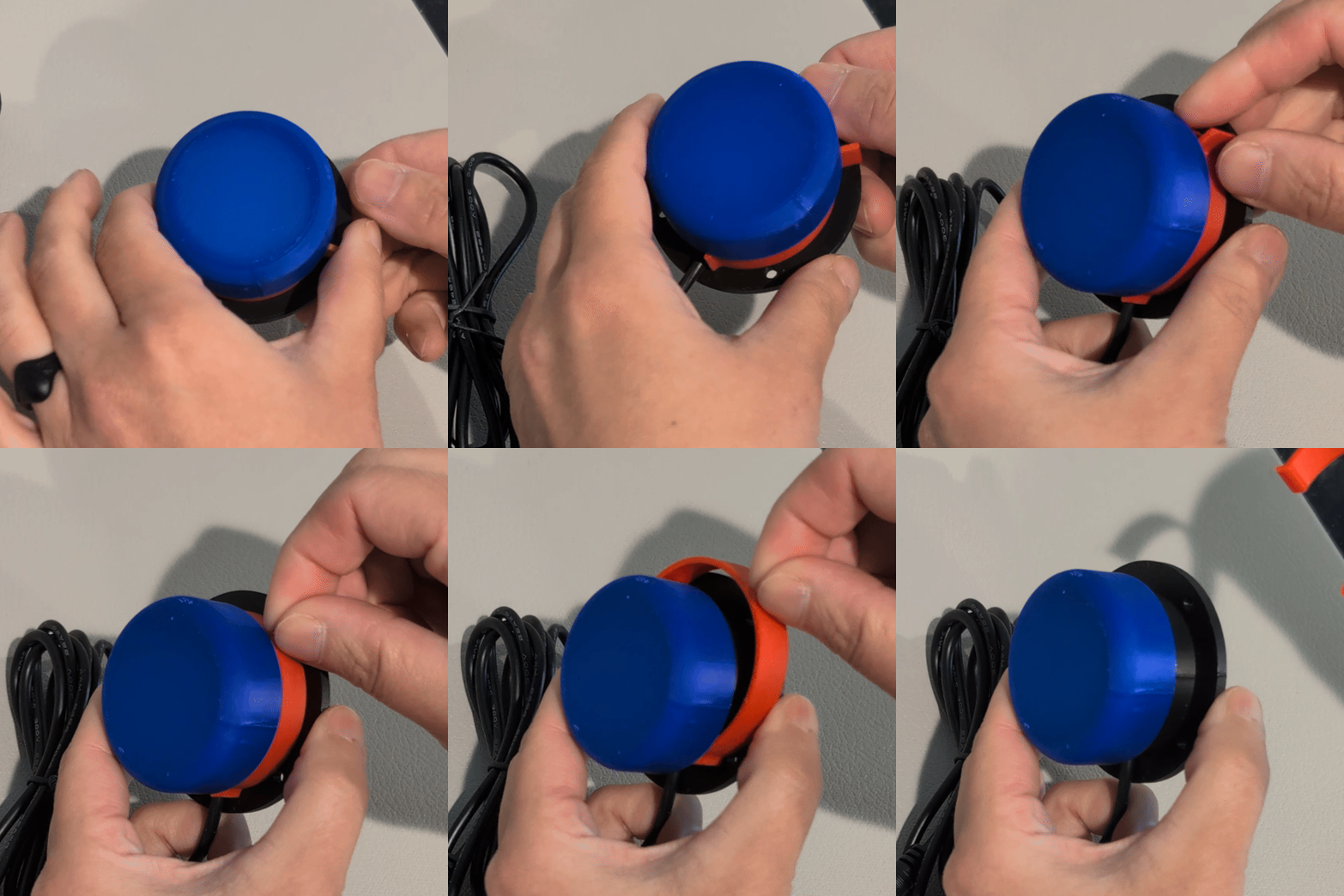
Before using your switches, you must remove the plastic keyguard insert from each switch button.
The keyguard is a protective insert designed to prevent accidental presses during storage and transit. If you're pressing the switch and nothing happens, this is likely why! Simply pull the keyguard out as shown in the image.
Plug in the USB Adapter
Connect the USB adapter to your device's USB Type-A port. We recommend using a Windows-based computer for the best compatibility, but the adapter works with most devices including Mac, Chromebook, and some tablets.
Connect the Splitter
Take the 3.5mm splitter cable and plug the single end (male connector) into the USB adapter's 3.5mm port (female connector). The splitter will now provide two separate input ports.
Attach Your Switches
Plug each switch's 3.5mm cable into one of the splitter's two ports. The splitter automatically maps each switch to a keyboard input:
🎯 Default Input Mapping
- Port 1: Spacebar
- Port 2: Enter (Return) key
Test Your Setup
Head over to Benny's Hub to test your switches with our free accessible games! Most games on the hub are designed to work with one or two switch inputs.
Swap Inputs If Needed
Want to switch which button does what? Simply swap the 3.5mm plugs on the splitter! If you want your left switch to be Enter and your right switch to be Spacebar, just switch which port each is plugged into.
Your Kit In Action
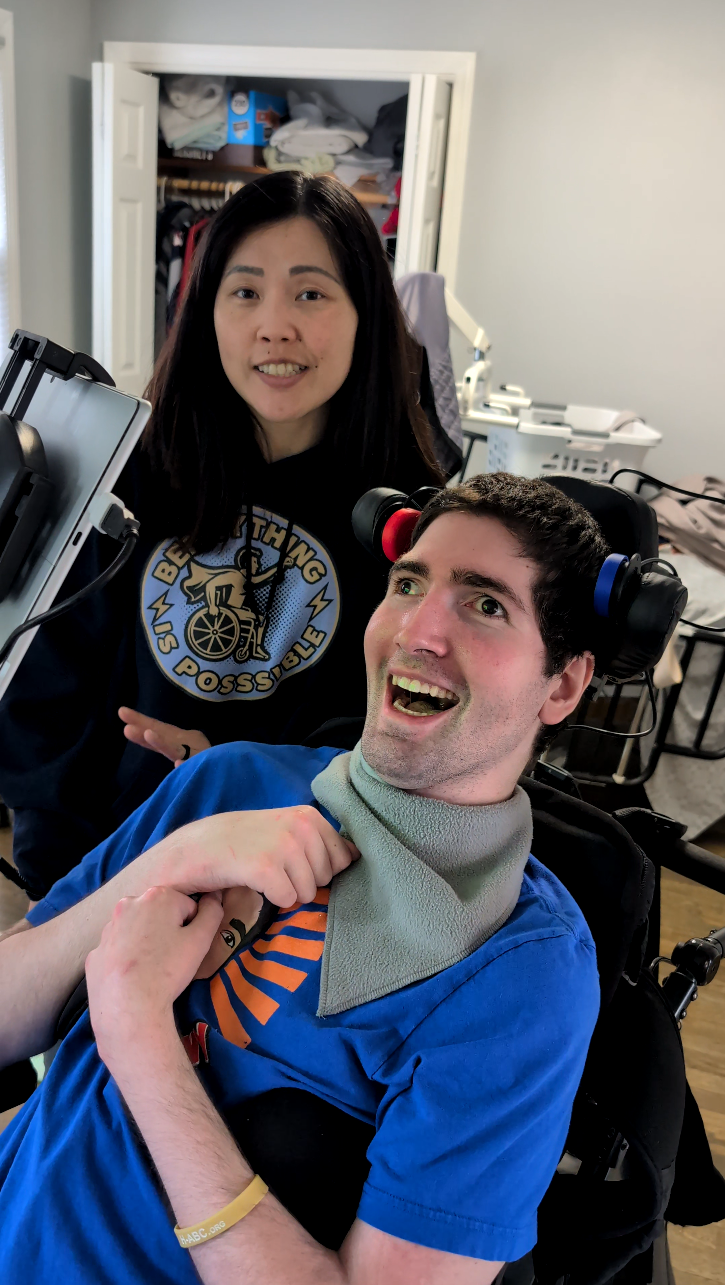
Position your switches wherever is most comfortable for the user. The 3.5mm cables provide flexibility for different setups and mounting positions.
In this example, the switches are mounted to the wheelchair headrest wings using the included velcro strips.
📎 Velcro Mounting Tips
We've included velcro strips with adhesive backing. Be careful — the adhesive is very sticky! You can cut the strips to size and attach them wherever works best for your setup. Make sure surfaces are clean and dry before applying.
Don't Have USB Type-A?
The USB adapter has a standard USB Type-A connector. If your device doesn't have this port, you'll need an adapter. Here are common scenarios:
📱 iPad / iPhone
Use a USB-A to Lightning adapter, or Apple's Lightning to USB Camera Adapter
💻 Modern Laptops
Use a USB-A to USB-C adapter or a USB-C hub with USB-A ports
📲 Android Tablets
Use a USB-A to USB-C adapter (must support USB OTG)
🎮 Gaming Consoles
Most consoles have USB-A ports. Check your Xbox, PlayStation, or Switch dock for available ports
Need Help?
Having trouble getting set up? We're here to help! Reach out to us through any of these channels.
Ready to Play?
Benny's Hub has a growing library of free, accessible games designed for one and two-button play. It's the perfect place to test your new switches and have fun!
 Visit Benny's Hub